How to load a GPX track onto a Garmin Edge 520 from your phone
- Guide mtb, Mtb life
- November 30, 2018
This is the workflow I used in 2018 with an iPhone and a Garmin Edge 520+. The menu names reflect the version of Garmin Connect I used at the time.
- Open the GPX route catalogue in Safari and download the track you want to ride.
- Save the GPX file to Dropbox or Google Drive.
- Open the file in your storage app. Use Share or Open with and select Garmin Connect.
- Follow the prompts to import and save the course in Garmin Connect.
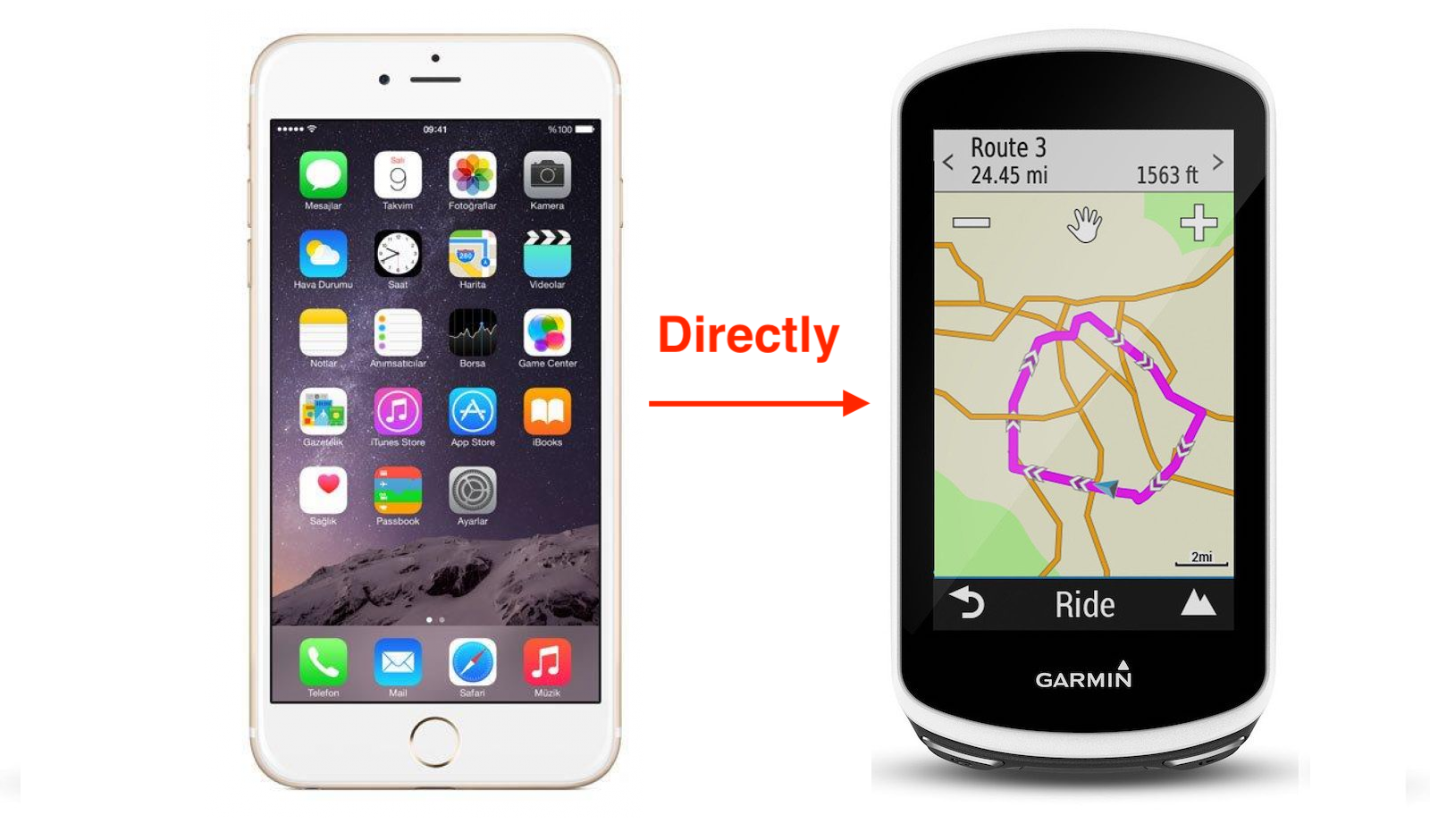
- Connect the Garmin Edge to your phone over Bluetooth. Open the saved course in Garmin Connect and tap the send icon to transfer it.
- On the Edge, open Courses and check that the route is available before setting off.